Getting Started
Special
SINGLE SIGN-ON
Teams
Users
Escalation Policies
Service
Incident
Request
On-Call Shift
Schedules
Schedule Override
Logs
API
Webhook
Apps Integration
Reports
Preference
Profile
Automation
Self-Service Portal
Mobile App
SLA
FAQ
Incident Management
Open the Incident detailed info page. There you can Edit, Acknowledge, Resolve and Reassign an Incident.
Edit Incident
Click on the EDIT INCIDENT button → There you can edit an incident’s Urgency or Description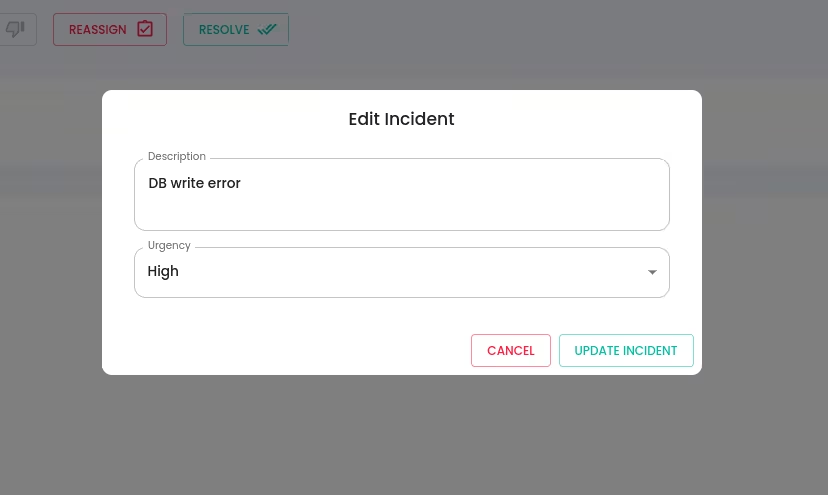
Reassign Incident
You have the option of reassigning an incident to a different escalation policy or a specific user if it turns out that you or another assigned responder will be unable to address it.
- Reassign to an Escalation: The Incident will be escalated based on the selected escalation policy. This method is ideal because the escalation policy will continue to cycle through escalation rules until a user acknowledges/resolve the incident.
- Reassign to a User: Reassigning the incident to an individual user means that, only that user will receive a notification under the user's notification preferences(rules).
To Reassign an Incident : click on REASSIGN button → Select Type and specific value → Click REASSIGN INCIDENT button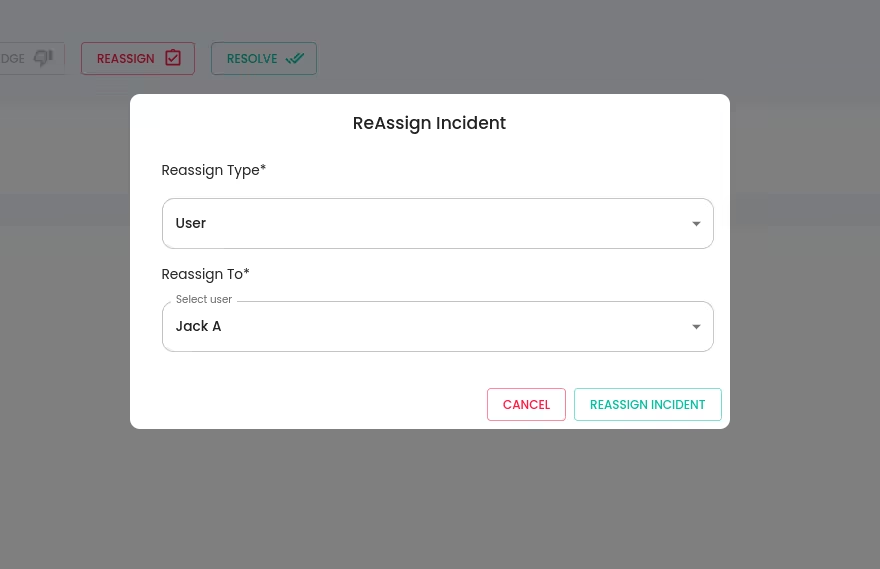
Acknowledge an Incident
Acknowledge an Incident if the Incident has been started to handle by the User.
To Acknowledge an Incident:
Click the ACKNOWLEDGE button
Unacknowledge an Incident
If you have acknowledged an Incident accidentally or you can’t continue to work on the Incident(In this case you can also opt for the Reassign), then you can make the Incident back to the Triggered state. While doing it, the escalation will continue as per the Incident’s current escalation.
To Uncknowledge an Incident:
Click the UNACKNOWLEDGE button
Snooze an Incident
Snoozing an incident temporarily suppresses alerts and notifications until the selected interval or a specific date and time. Once the snooze period expires, the incident will automatically re-trigger, and the escalation process will restart.
To Snooze an Incident:
- Click the Snooze button
- Select the specific time or interval.
• You can snooze an incident for up to 7 days from the current time.
Resolve an Incident
Resolve an Incident if the Incident is taken care of successfully. You can enter a Comment if needed. It will be displayed under the Activity table under the Incidents tab.
To Resolve an Incident:
- Select the RESOLVE button
- Enter Comment(Optional)
- Select the RESOLVE INCIDENT button