Getting Started
Special
SINGLE SIGN-ON
Teams
Users
Escalation Policies
Service
Incident
Request
On-Call Shift
Schedules
Schedule Override
Logs
API
Webhook
Apps Integration
Reports
Preference
Profile
Automation
Self-Service Portal
Mobile App
SLA
FAQ
Callgoose SQIBS Mobile App
The Callgoose SQIBS mobile app allows users to manage and respond to incidents, manage profile settings, view on-call schedules, and perform other related tasks.
Download the Mobile App
The mobile app is available on the Apple App Store and Google Play Store. You can download the app by searching for Callgoose SQIBS in either app store, or tap one of the link below from your mobile device.
Log in/Sign in
When you open the app for the first time, you will be prompted to log in. Tap the Sign in button, and the app will guide you through the remaining steps of the process.
Device Security Protection
Your organization may require the mobile app to be protected using your device's security, such as a PIN, password, pattern, fingerprint, or Face ID. Depending on your organization's security policy, you may be required to authenticate in any of the following situations:
- When opening the app.
- When returning to the app after switching to another application.
- After the app has been idle for a configured period of time.
If your device does not have a screen lock or biometric security configured, the app will prompt you to set up device security before you can continue using it.
Functionalities
After logging in, the default home page is Incidents.
You can navigate to other pages by swiping right to open the left navigation drawer or by tapping the three-line menu icon in the top-left corner.
1. Incidents
The Incidents page is the default home screen.
Manage Incidents
Incidents can be managed directly from the Incidents page. Available actions include:
- Acknowledge
- Un-Acknowledge
- Reassign
- Resolve
- Run workflows
- Add comments
Tap an incident to view its full details.
Create Incident
On the Incidents page, tap the + (plus) icon located at the bottom-right corner.
2. Requests
Requests are available under the Requests page.
Manage Requests
Requests can be managed directly from the Requests page. Available actions include:
- Mark as In Progress
- Cancel progress
- Mark as complete
- Add comments
Tap a request to view its full details.
Create Request
On the Requests page, tap the + (plus) icon located at the bottom-right corner.
3. Schedule Overrides
The Schedule Overrides page displays pending schedule override requests.
You can either accept or reject these requests.
4. Schedule
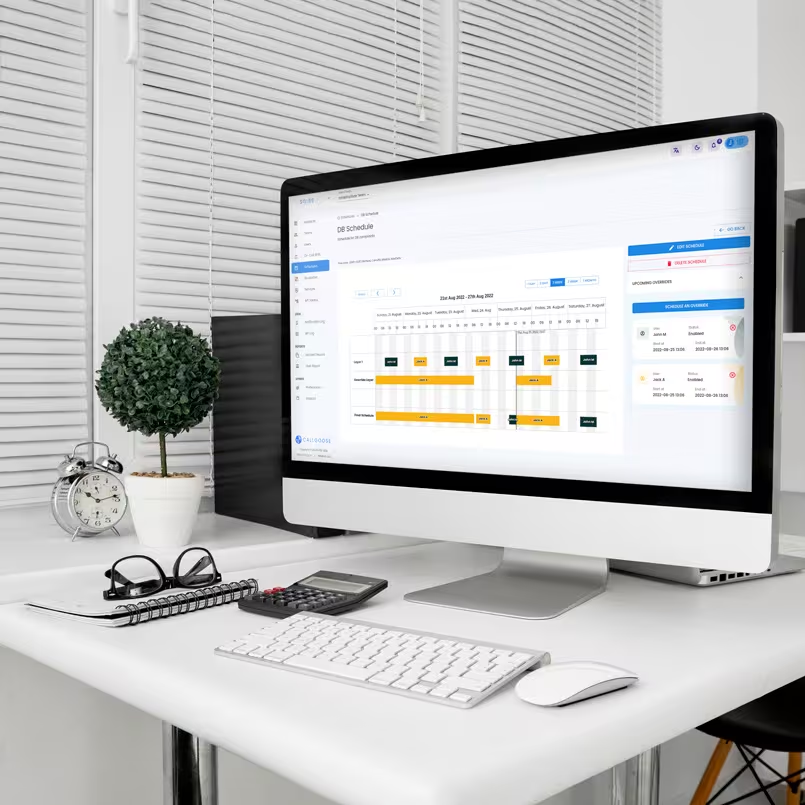
The Schedule page displays all schedules for the selected team, including the current on-call user details.
Tap a schedule item to view its full details.
Create Shift/Schedule Override
On the detailed schedule page, tap the + (plus) icon at the bottom-right corner and complete the form.
5. My On-Call
The My On-Call page displays your current on-call shifts, including the associated escalation policy and your level within that policy for the selected team.
Create Shift/Schedule Override
Tap the + (plus) icon at the bottom-right corner and complete the form.
6. Profile Management
You can access the Profile page by selecting your name at the top of the navigation drawer.
From the Profile page, you can edit:
- Name
- Communication language
- Contact information
- Notification rules
Logout
The Logout option is available on the Profile page.
7. Settings
From the Settings page, you can manage:
- App language
- App theme
- App's notification settings