Getting Started
Special
SINGLE SIGN-ON
Teams
Users
Escalation Policies
Service
Incident
Request
On-Call Shift
Schedules
Schedule Override
Logs
API
Webhook
Apps Integration
Reports
Preference
Profile
Automation
Self-Service Portal
Mobile App
SLA
FAQ
Example 5: Primary and Backup Rotation
Schedule Requirements
Purpose: Assign a primary On-Call with a backup for escalations.
Schedule:
- Monday to Sunday:
- Primary On-Call:
- Rotates daily or weekly among team members.
- Each member handles a full 24-hour shift starting at 8am local time.
- Backup On-Call:
- Rotates weekly among all team members.
- Handles escalations if the primary is unavailable.
- Weekends:
- A single person covers the weekend: Saturday 8am to Monday 8am with a designated backup.
Schedule Configuration
Primary On-Call Schedule
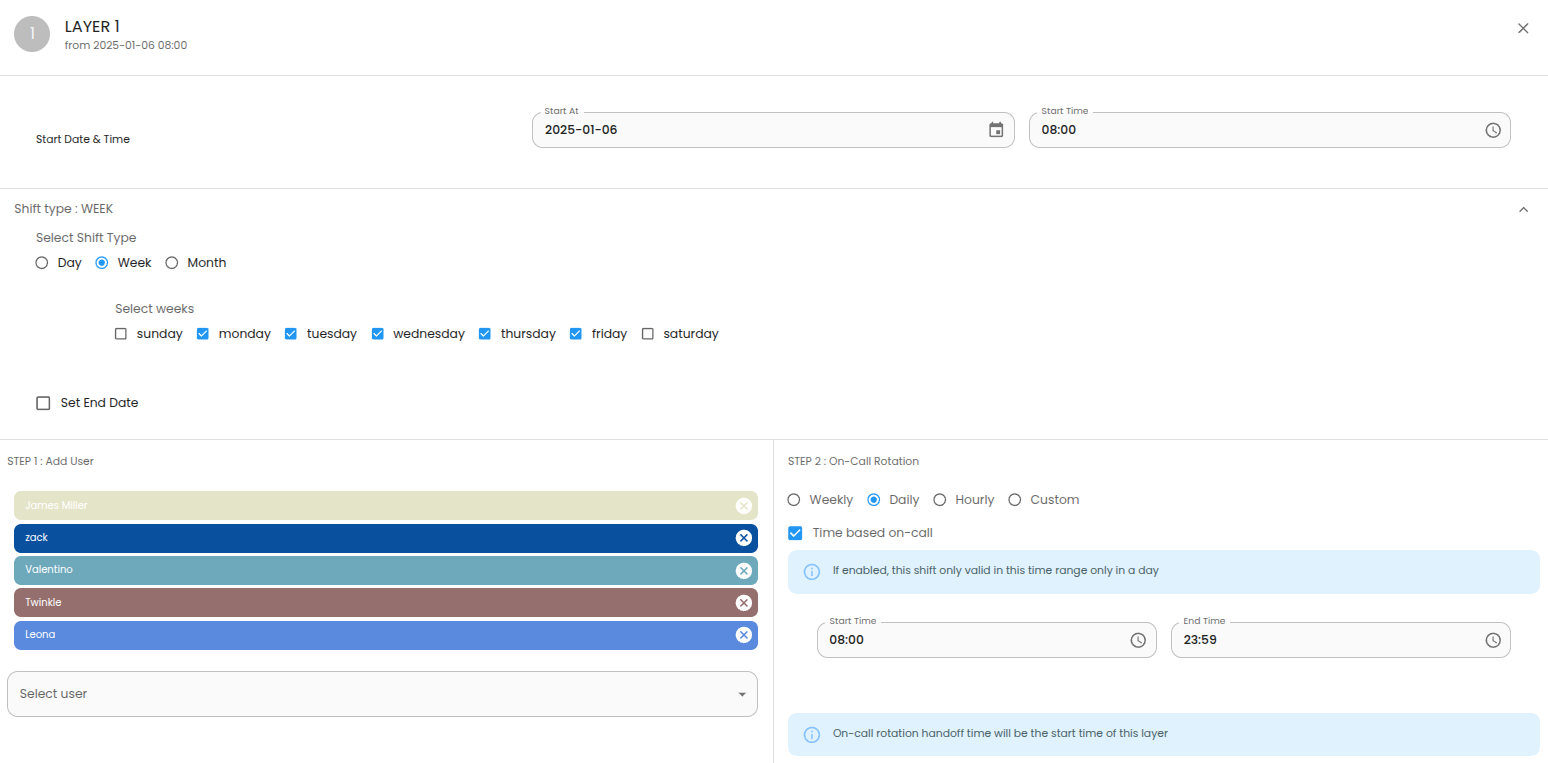
- Layer 1
- Choose the appropriate start date based on the day you want to begin this layer.
- Start Time: 08:00 GMT
- Shift Type: Week
- Select weeks: Monday to Friday
- Add User: All team members, except those in the Weekend team.
- On-Call Rotation: Daily
- Select Time based on-call option
- Start Time: 08:00 GMT
- End Time: 23:59 GMT
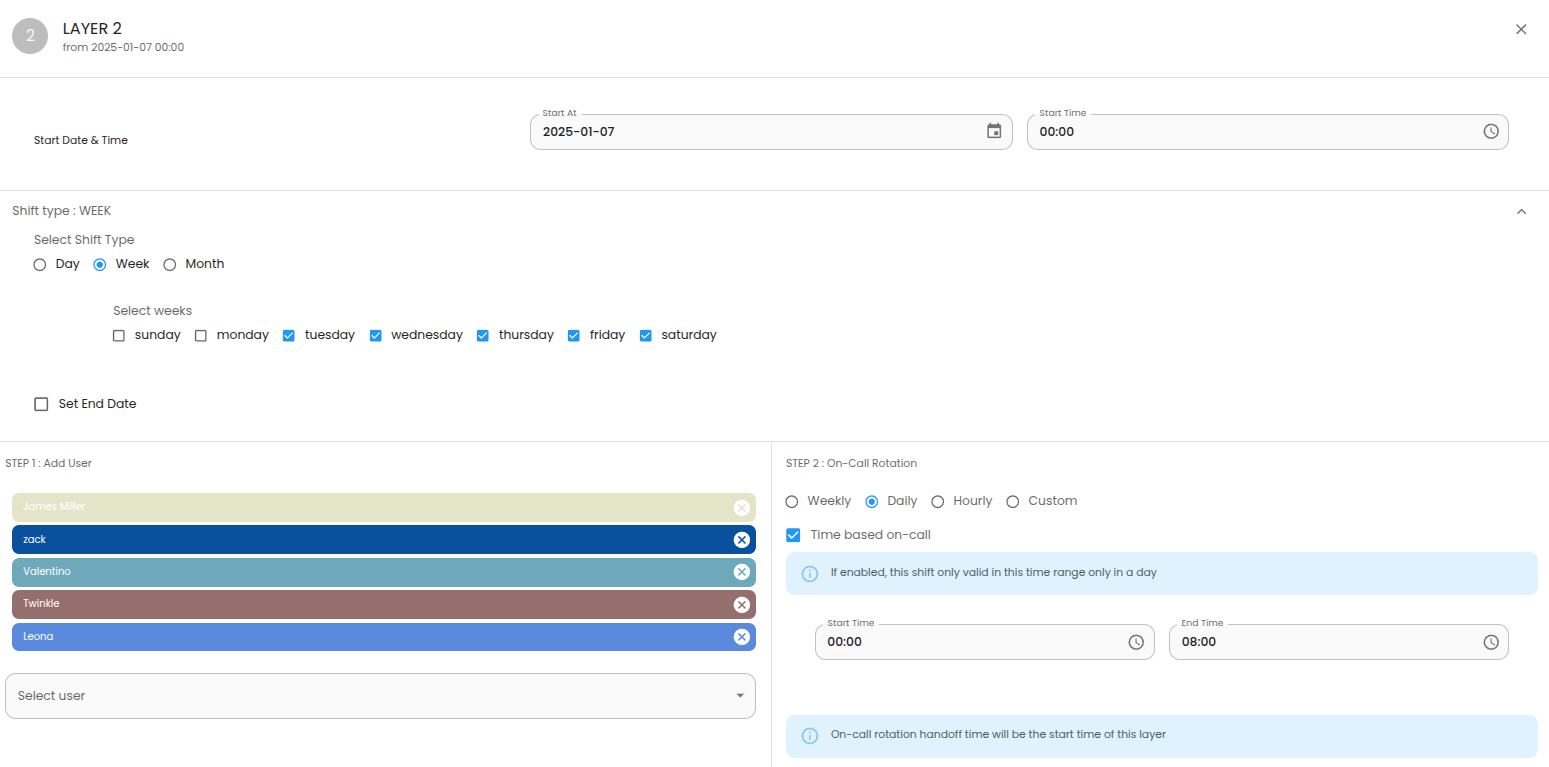
- Layer 2
- Choose the appropriate start date based on the day you want to begin this layer.
- Start Time: 00:00 GMT
- Shift Type: Week
- Select weeks: Tuesday to Saturday
- Add User: All team members, except those in the Weekend team.
- On-Call Rotation: Daily
- Select Time based on-call option
- Start Time: 00:00 GMT
- End Time: 08:00 GMT
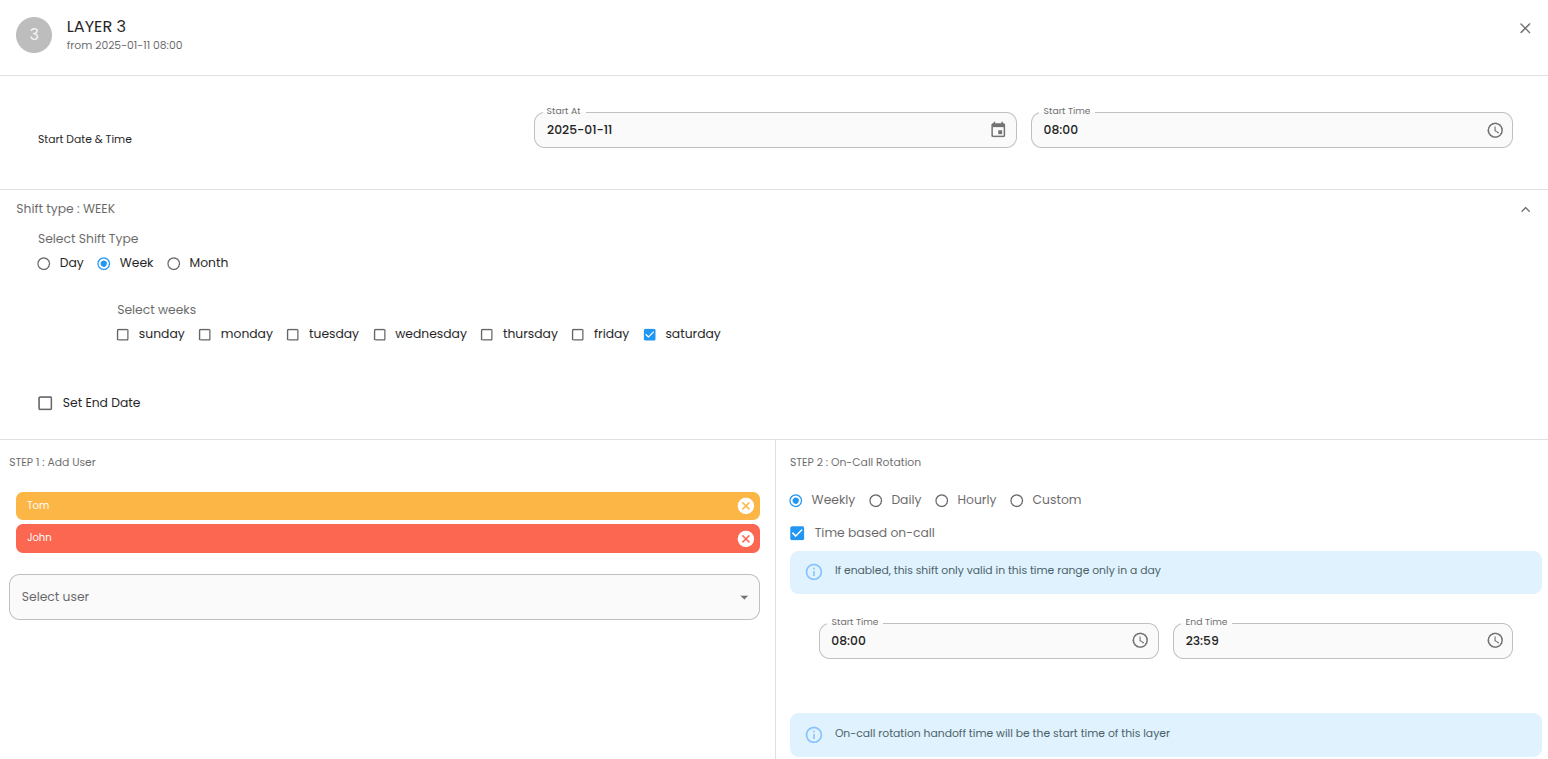
- Layer 3
- Choose the appropriate start date based on the day you want to begin this layer.
- Start Time: 08:00 GMT
- Shift Type: Week
- Select weeks: Saturday
- Add User: Add Weekend team.
- On-Call Rotation: Weekly
- Select Time based on-call option
- Start Time: 08:00 GMT
- End Time: 23:59 GMT
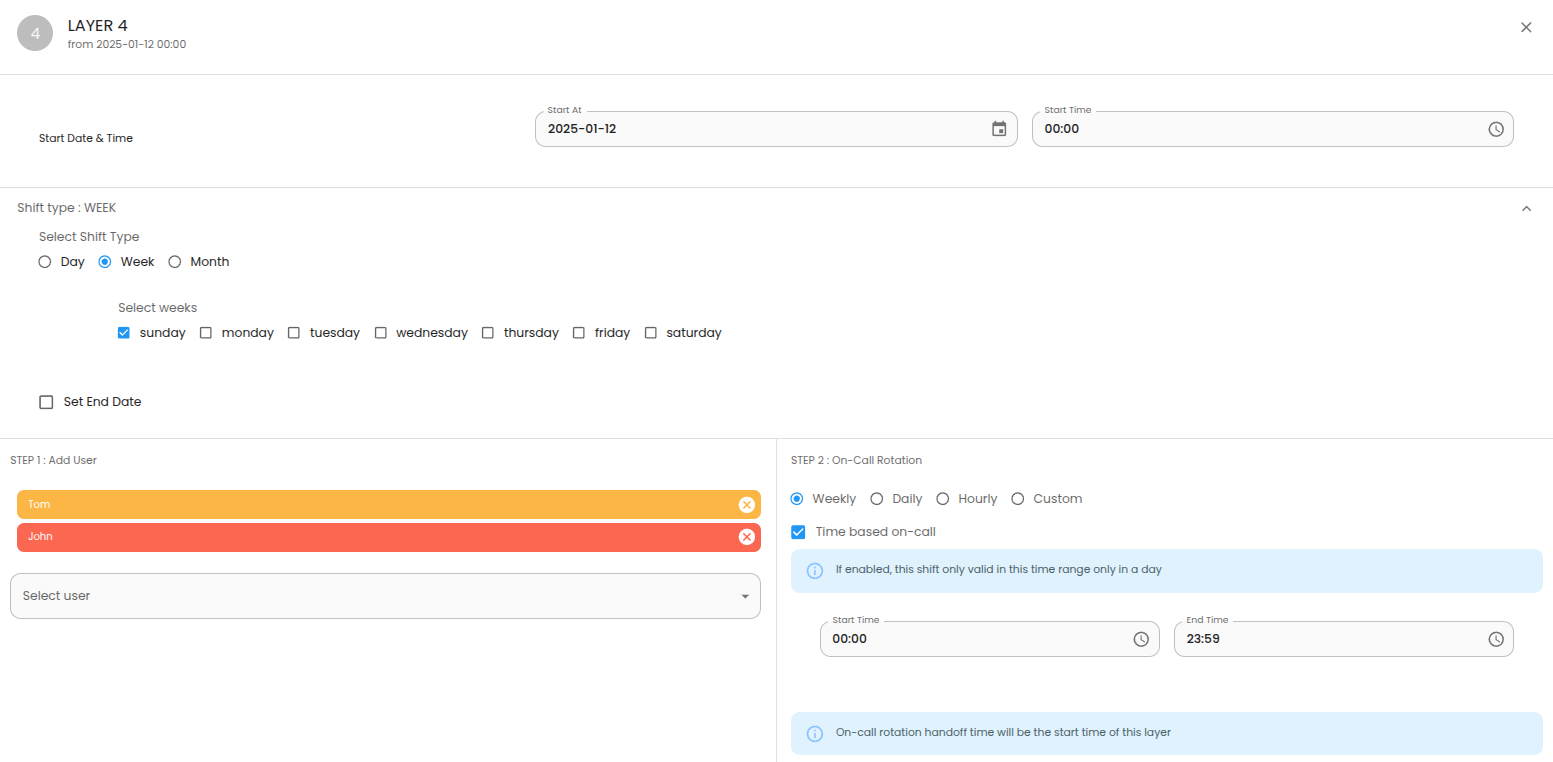
- Layer 4
- Choose the appropriate start date based on the day you want to begin this layer.
- Start Time: 00:00 GMT
- Shift Type: Week
- Select weeks: Sunday
- Add User: Add Weekend team.
- On-Call Rotation: Weekly
- Select Time based on-call option
- Start Time: 00:00 GMT
- End Time: 23:59 GMT
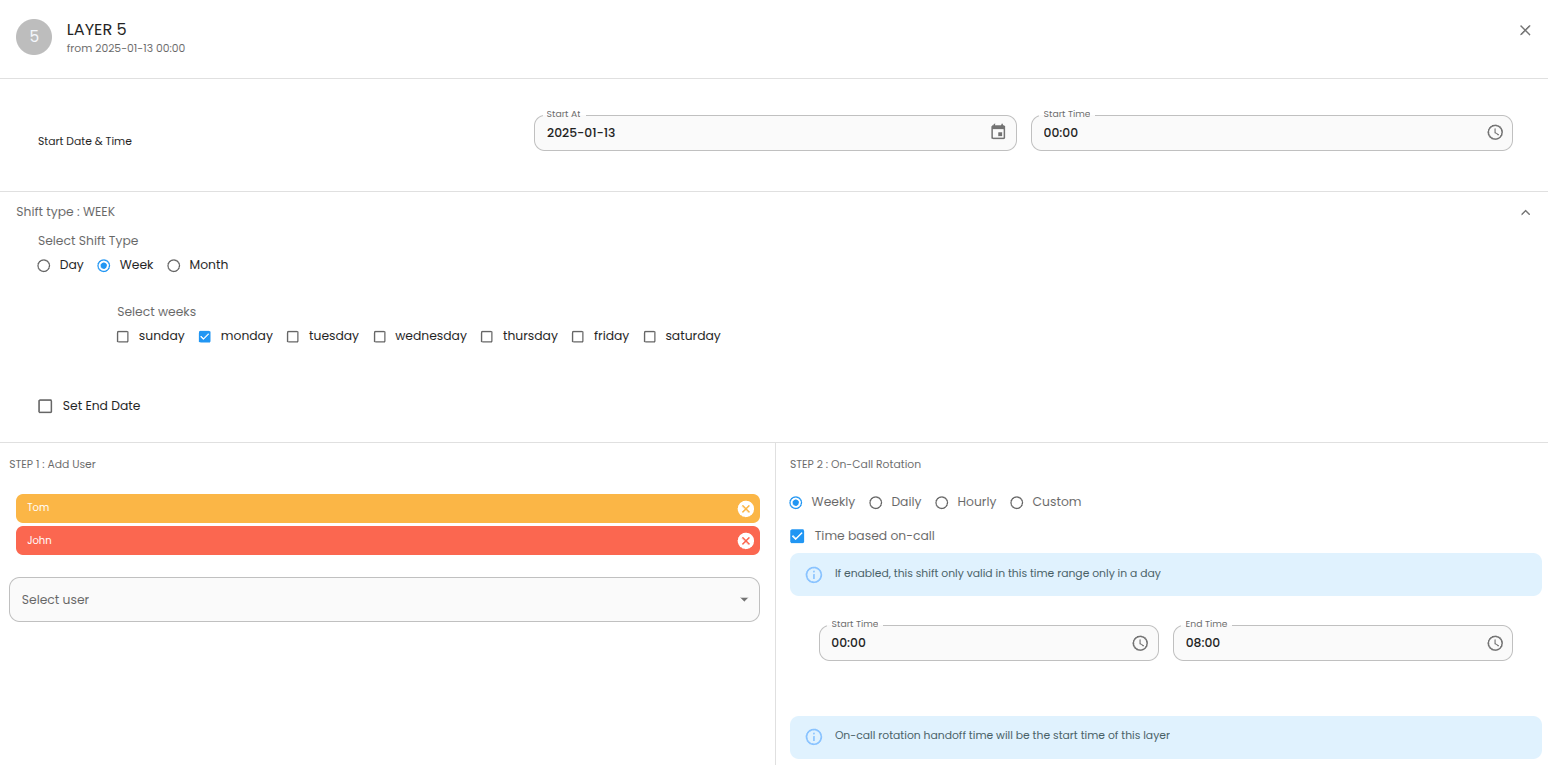
- Layer 5
- Choose the appropriate start date based on the day you want to begin this layer.
- Start Time: 00:00 GMT
- Shift Type: Week
- Select weeks: Monday
- Add User: Add Weekend team.
- On-Call Rotation: Weekly
- Select Time based on-call option
- Start Time: 00:00 GMT
- End Time: 08:00 GMT
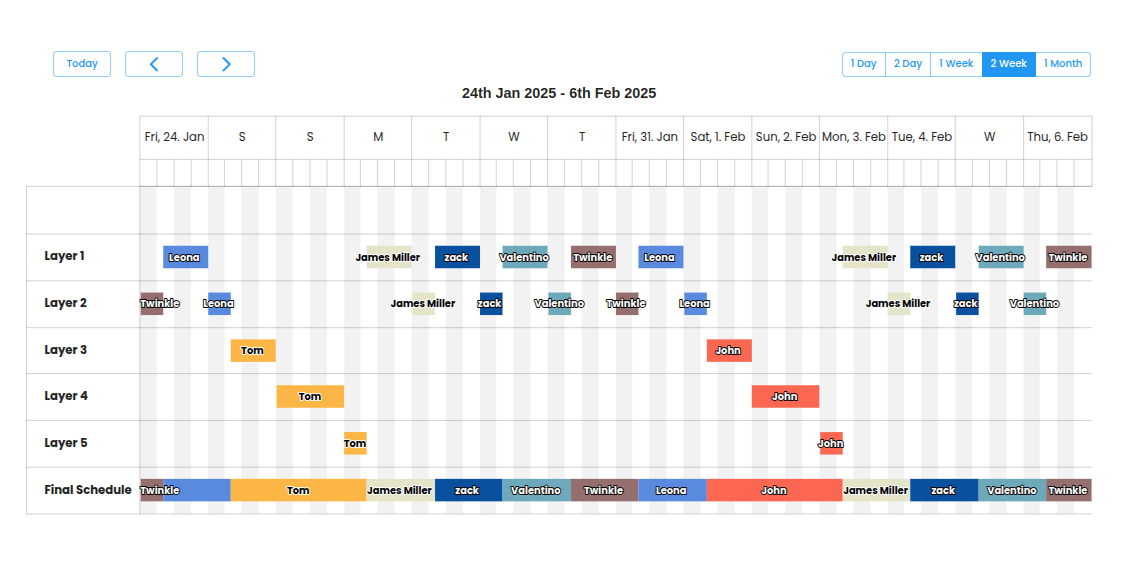
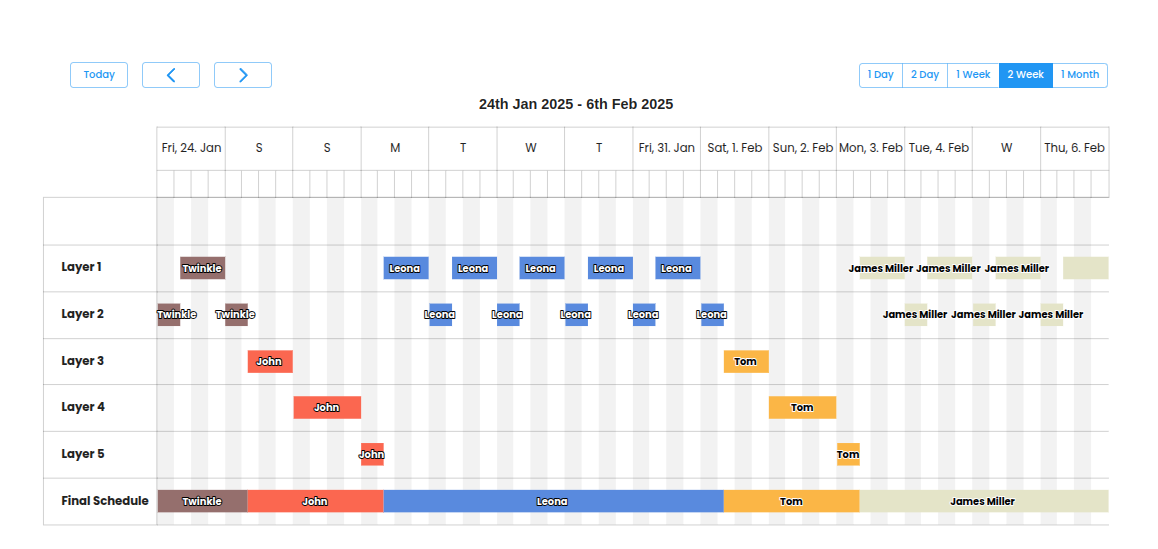
Primary On-Call Final Schedule
Backup On-Call Schedule
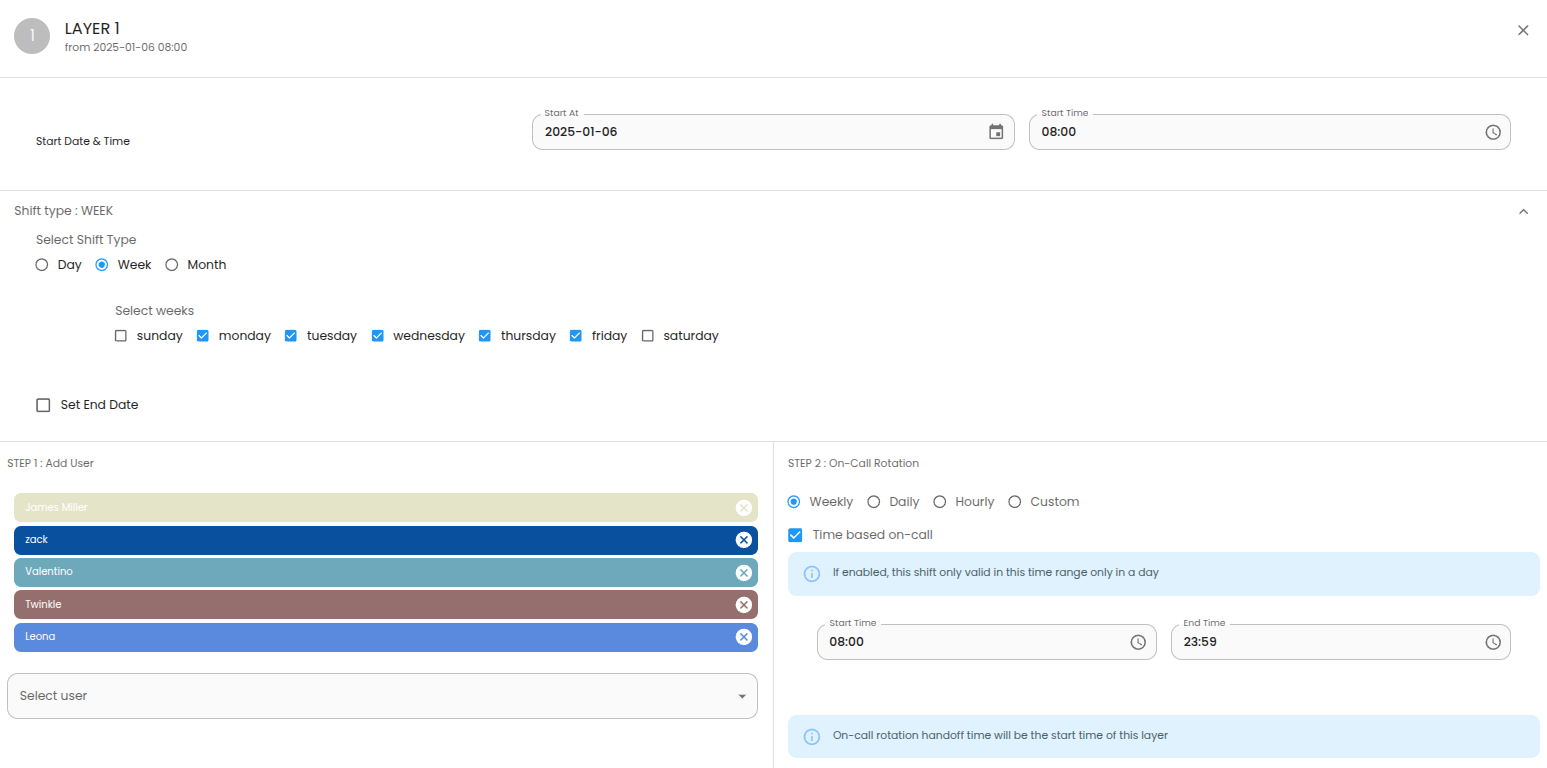
- Layer 1
- Choose the appropriate start date based on the day you want to begin this layer.
- Start Time: 08:00 GMT
- Shift Type: Week
- Select weeks: Monday to Friday
- Add User: All team members, except those in the Weekend team.
- On-Call Rotation: Weekly
- Select Time based on-call option
- Start Time: 08:00 GMT
- End Time: 23:59 GMT
- Layer 2
- Choose the appropriate start date based on the day you want to begin this layer.
- Start Time: 00:00 GMT
- Shift Type: Week
- Select weeks: Tuesday to Saturday
- Add User: All team members, except those in the Weekend team.
- On-Call Rotation: Weekly
- Select Time based on-call option
- Start Time: 00:00 GMT
- End Time: 08:00 GMT
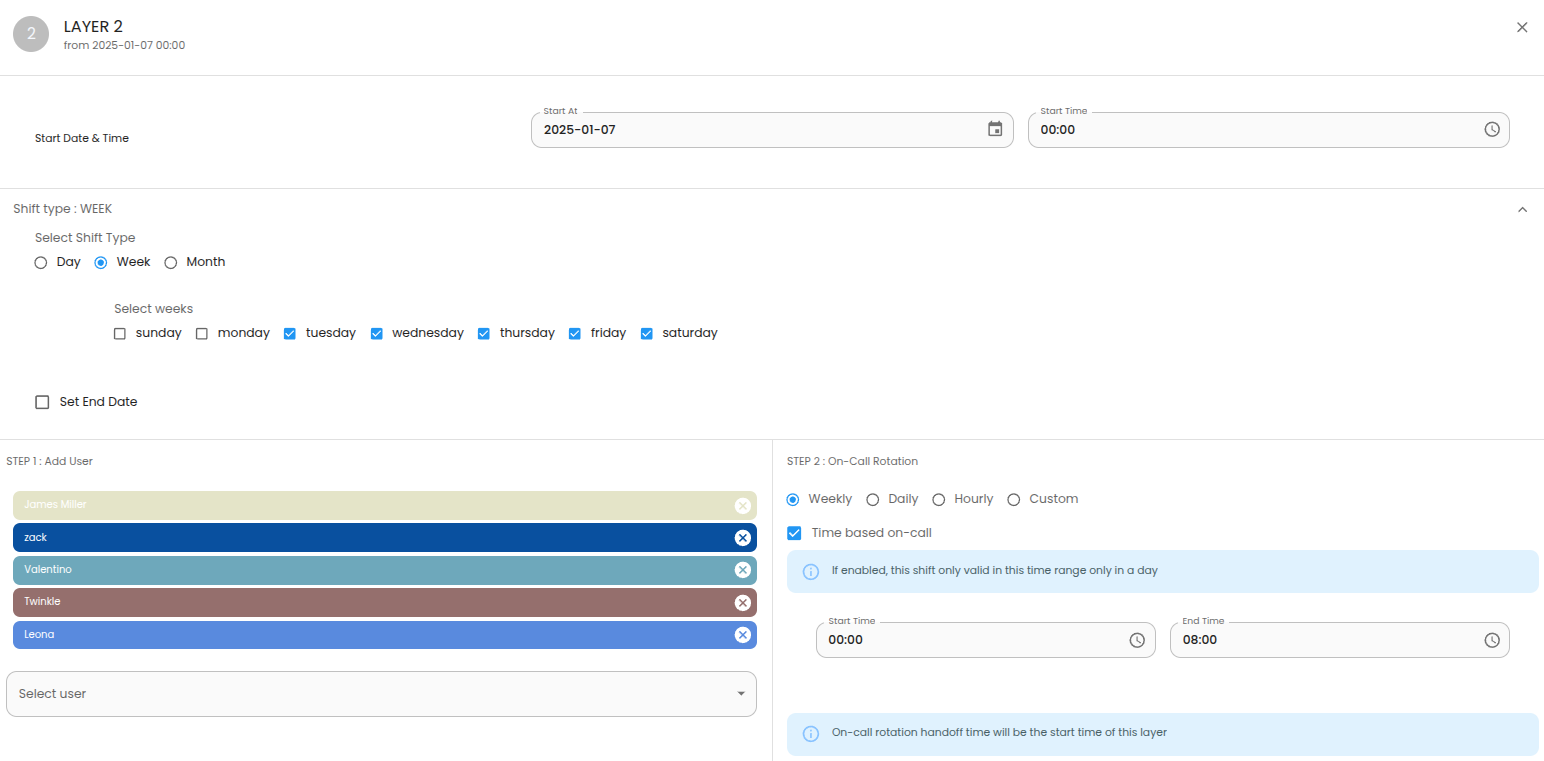
- Layer 3
- Choose the appropriate start date based on the day you want to begin this layer.
- Start Time: 08:00 GMT
- Shift Type: Week
- Select weeks: Saturday
- Add User: Add Weekend team.
- On-Call Rotation: Weekly
- Select Time based on-call option
- Start Time: 08:00 GMT
- End Time: 23:59 GMT
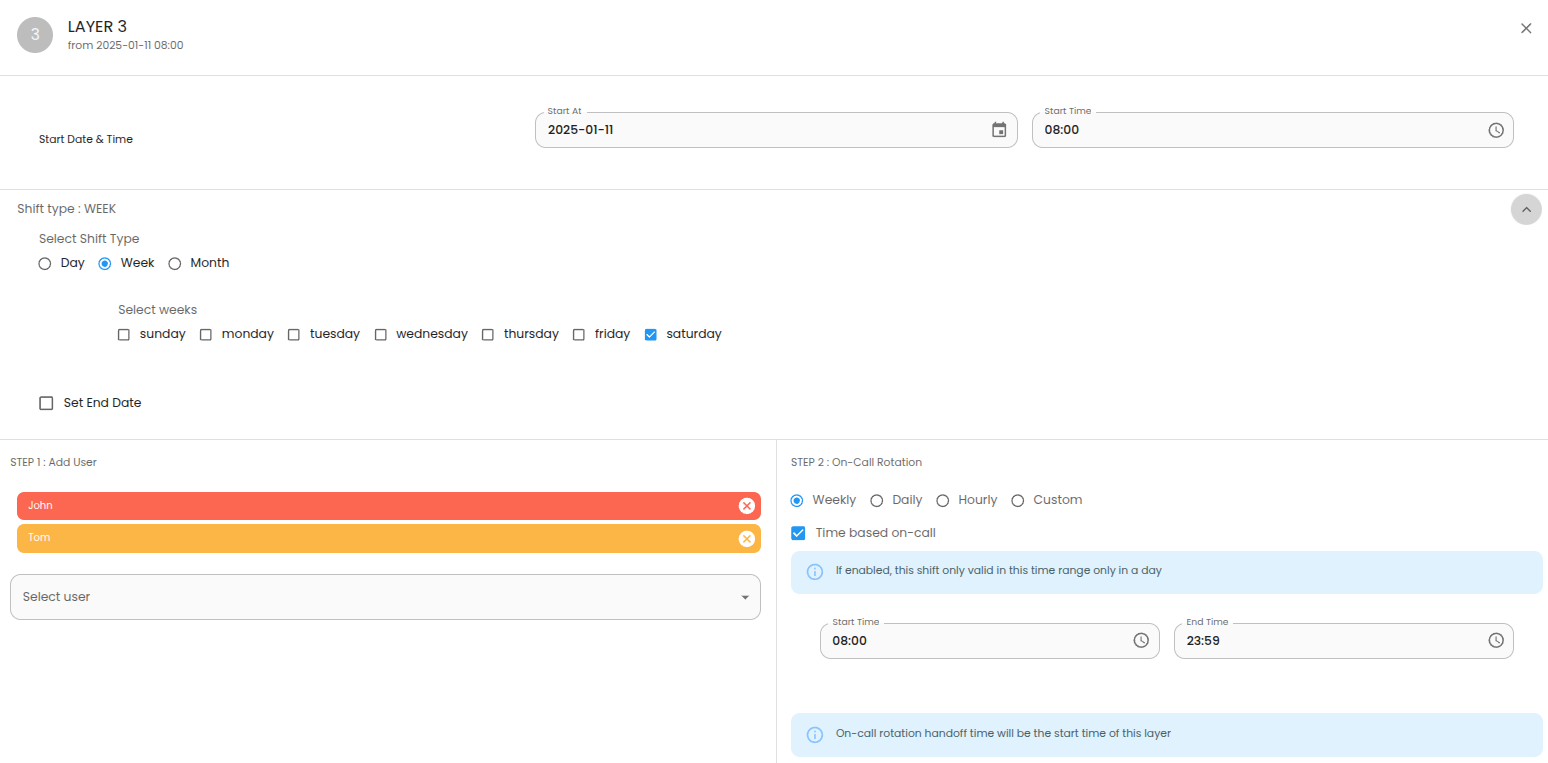
- Layer 4
- Choose the appropriate start date based on the day you want to begin this layer.
- Start Time: 00:00 GMT
- Shift Type: Week
- Select weeks: Sunday
- Add User: Add Weekend team.
- On-Call Rotation: Weekly
- Select Time based on-call option
- Start Time: 00:00 GMT
- End Time: 23:59 GMT
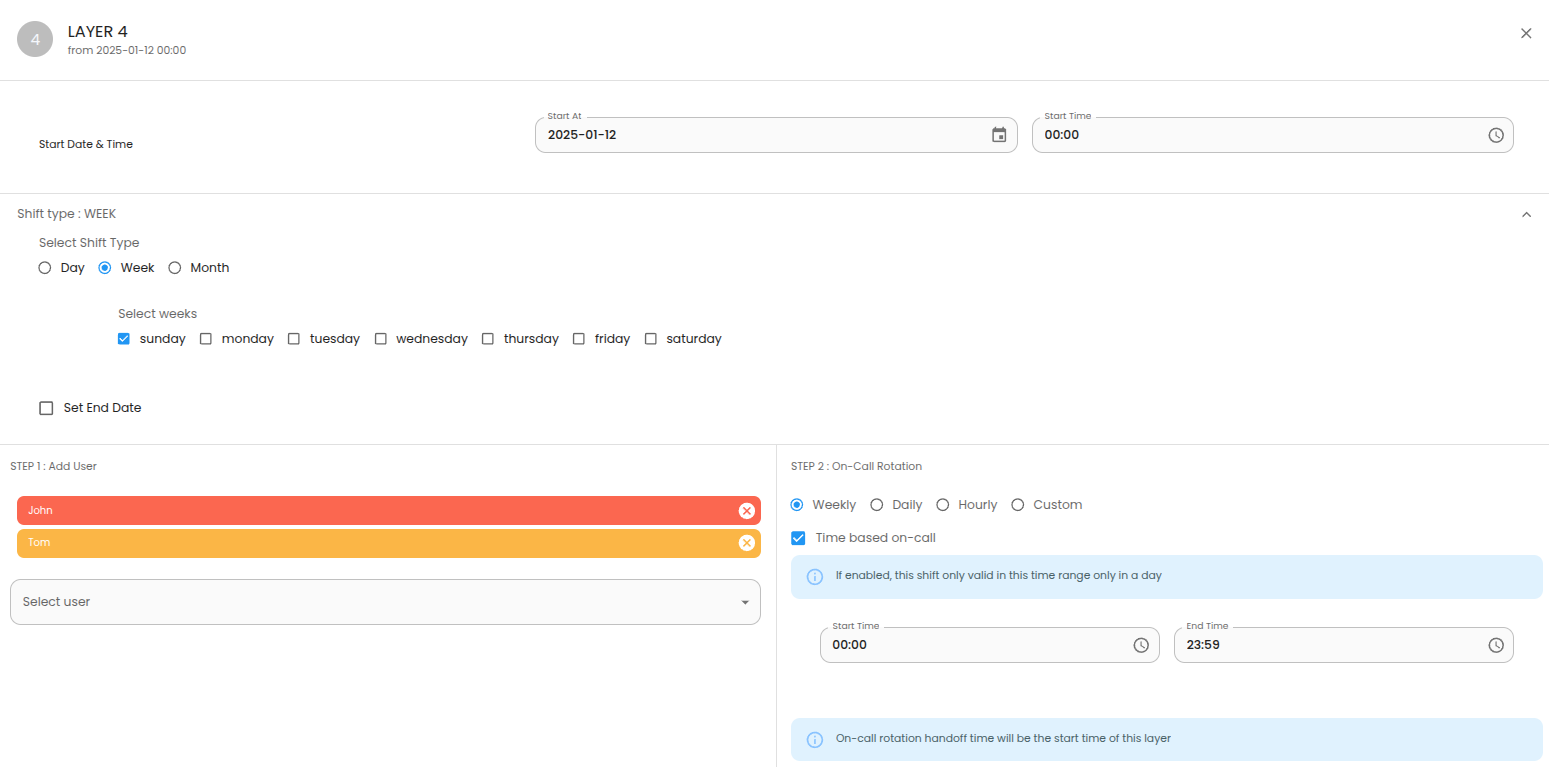
- Layer 5
- Choose the appropriate start date based on the day you want to begin this layer.
- Start Time: 00:00 GMT
- Shift Type: Week
- Select weeks: Monday
- Add User: Add Weekend team.
- On-Call Rotation: Weekly
- Select Time based on-call option
- Start Time: 00:00 GMT
- End Time: 08:00 GMT
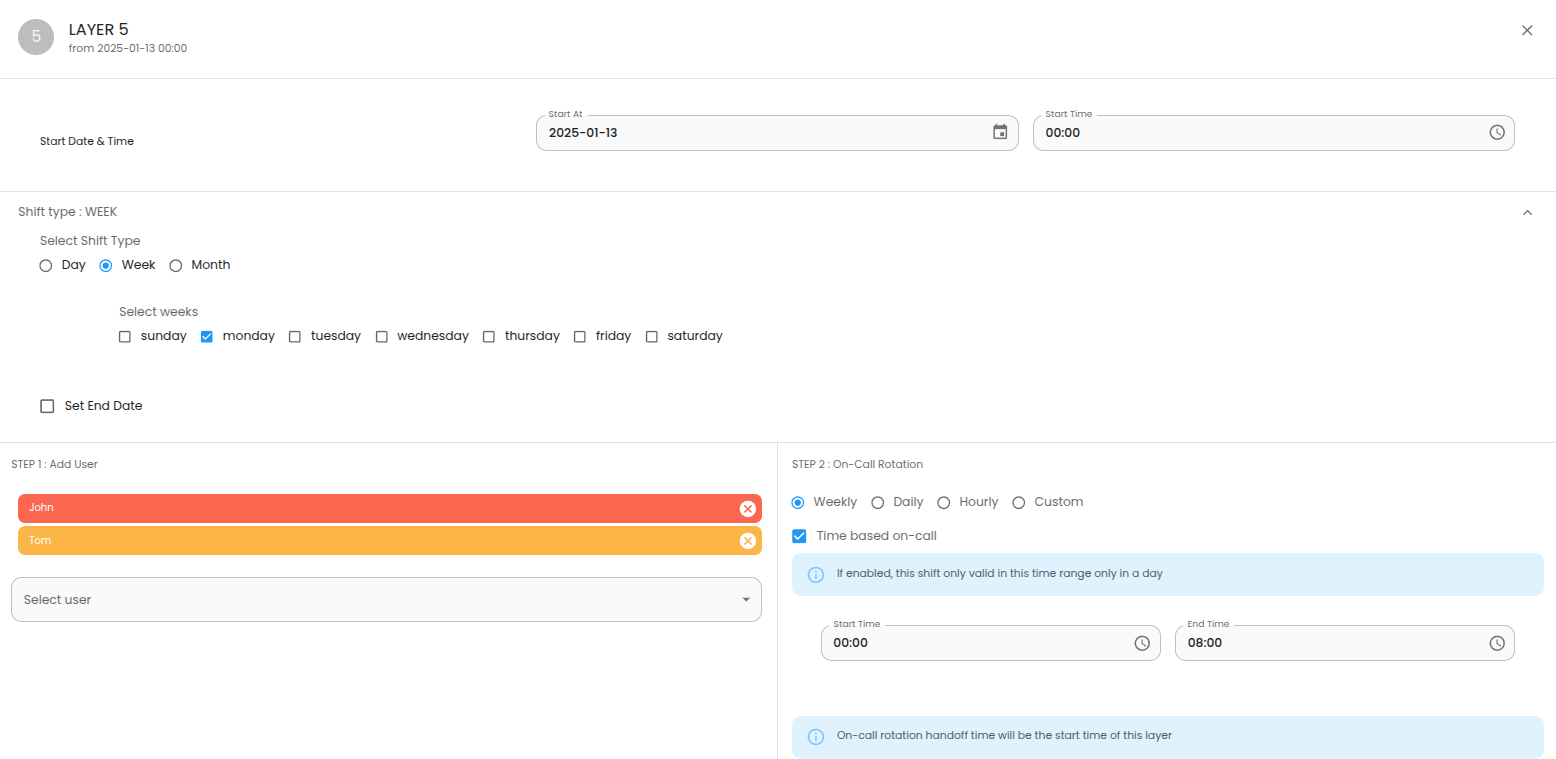
Backup On-Call Final Schedule
Create Escalation Policy
- Navigate to the Callgoose Dashboard and click on Escalation.
- Click on New Escalation Policy.
- Provide a suitable name and description for the policy.
- For Level 1, add the primary rotation schedule.
- Set the time interval between escalation levels.
- For Level 2, add the backup rotation schedule.
- If required, enable repeat escalation to ensure notifications are re-sent.
- Click Save.